AI & Machine Learning · Inference

On-prem LLM Models — observe, deploy, and tune local inference

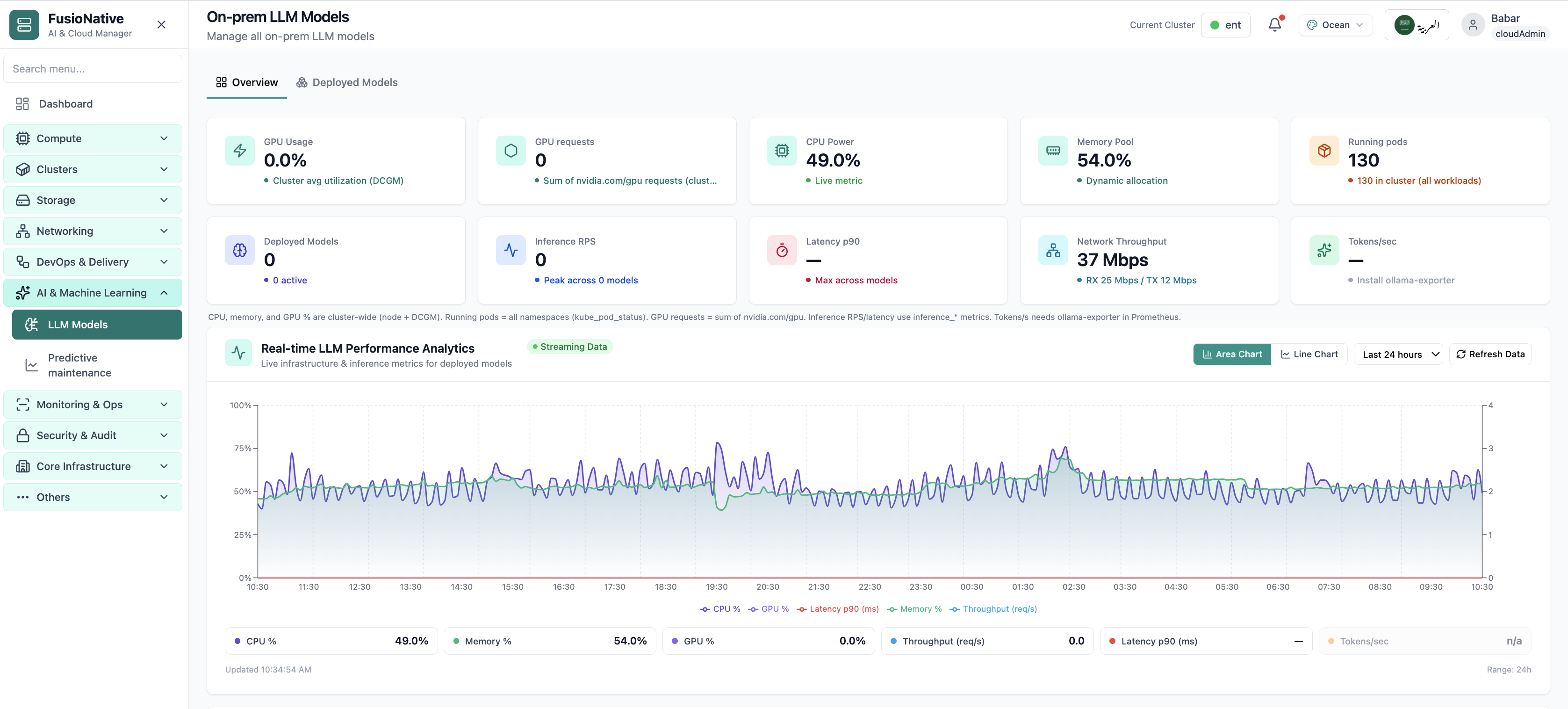
Manage every on-prem model from one cockpit: flip between Overview and Deployed Models, watch GPU signals from DCGM, correlate CPU and memory with cluster pods, and track inference throughput, latency, tokens, and network paths serving traffic. When you are ready to ship, choose Deploy Existing (reuse an attached cluster) or Deploy New (stand up fresh resources)—without losing Prometheus or optional Ollama exporter telemetry.

Product walkthrough

On-prem LLM models, step by step

Every frame below is a real Cloud Admin screen—paired with plain-language context so you know what you are looking at and why it matters operationally.

On-prem LLM models overview with GPU and inference metrics.
01 of 08 Cloud Admin

LLM Overview

Your starting point for on-prem LLM models: KPI cards and charts summarize fleet health, including on-prem llm models overview with gpu and inference metrics. Spot drift early, then drill into the tab that explains the root cause.

  • GPU and inference signals stay beside Kubernetes metrics
  • Charts link utilization to time so you spot spikes quickly
  • One click into deeper tabs when something looks off

Click the screenshot to open full size, zoom, and pan.
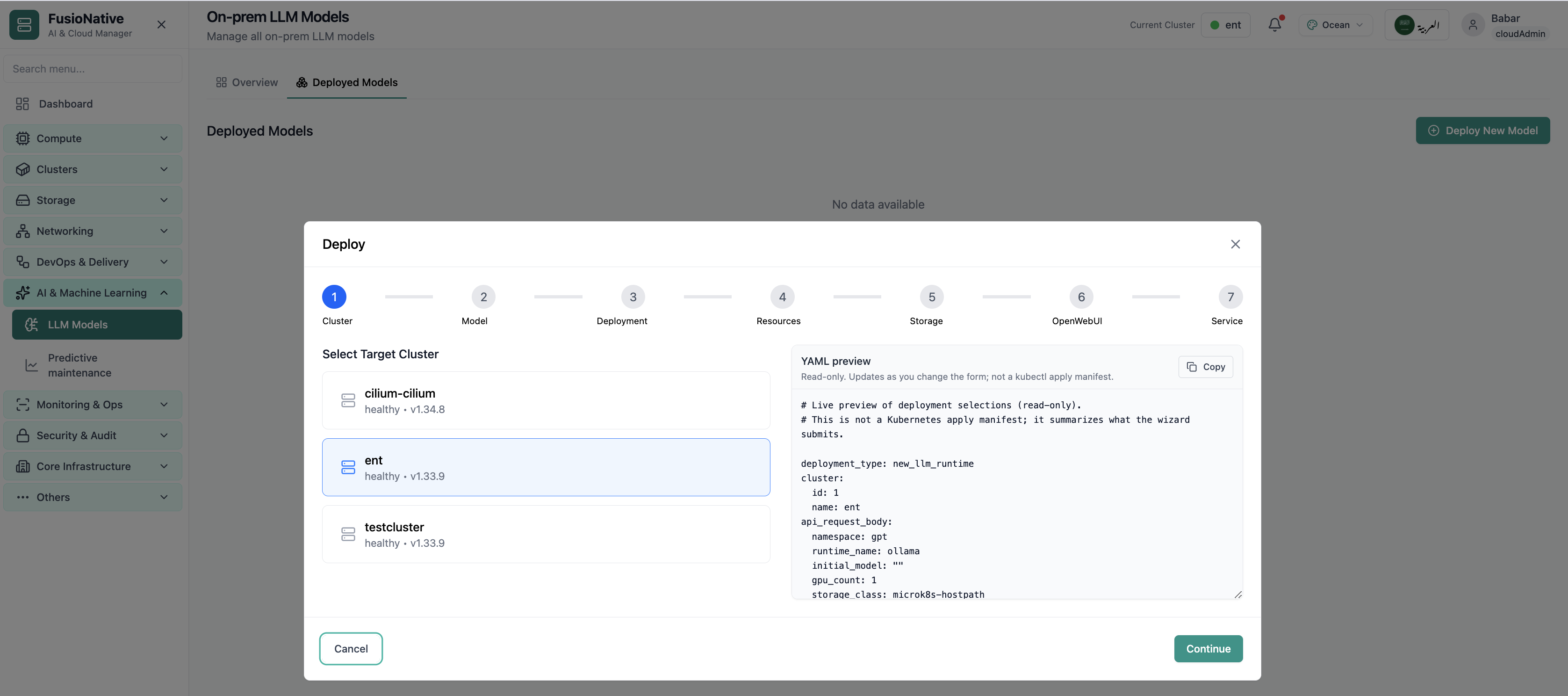
LLM deploy wizard cluster step.
02 of 08 Deploy wizard

Deploy · Cluster

The deploy wizard’s Cluster step is where operators confirm llm deploy wizard cluster step Each screen validates inputs before you advance, so GPU, storage, and networking stay aligned with cluster quotas and your on-prem policy.

  • Wizard validates each step before you continue
  • Settings stay consistent with cluster quotas and GPU pools
  • Review the full stack before anything reaches production

Click the screenshot to open full size, zoom, and pan.
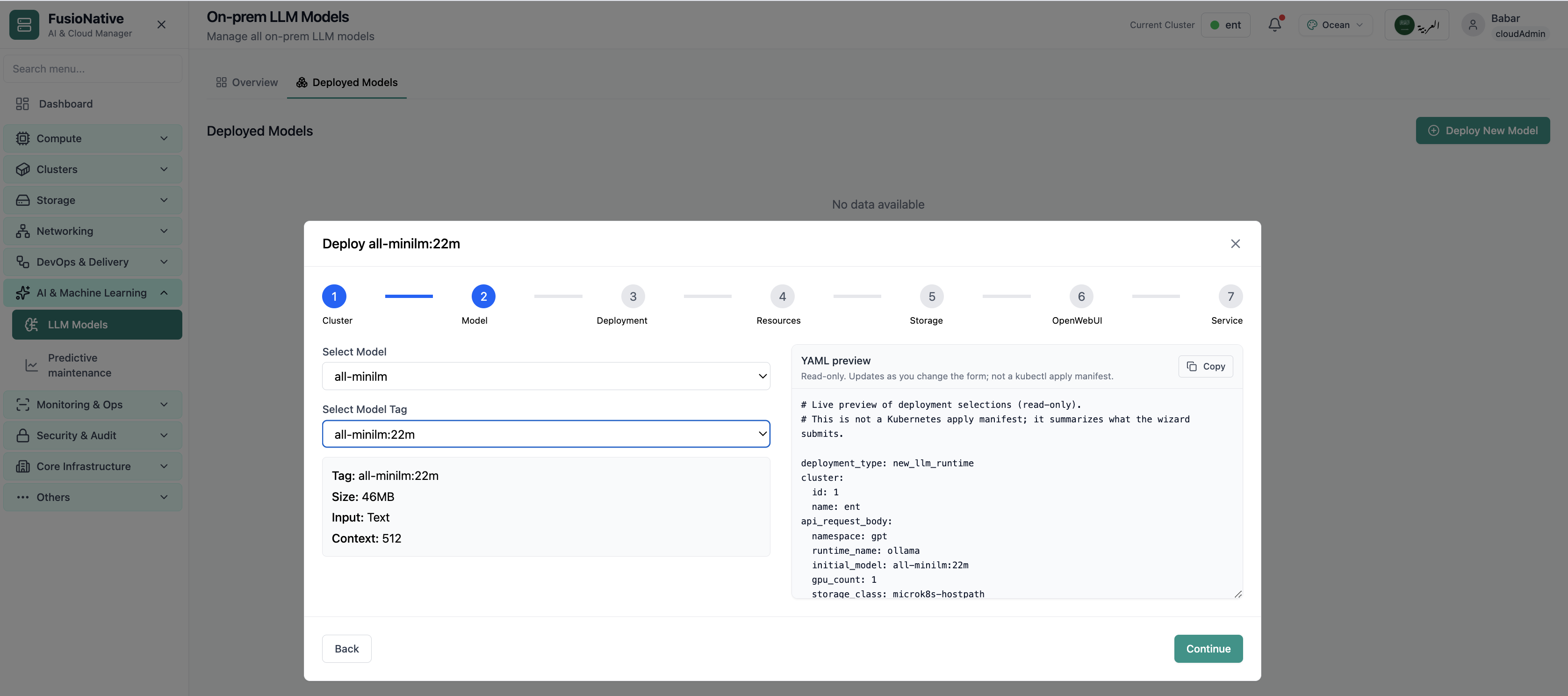
LLM deploy wizard model selection.
03 of 08 Deploy wizard

Deploy · Model

The deploy wizard’s Model step is where operators confirm llm deploy wizard model selection Each screen validates inputs before you advance, so GPU, storage, and networking stay aligned with cluster quotas and your on-prem policy.

  • Wizard validates each step before you continue
  • Settings stay consistent with cluster quotas and GPU pools
  • Review the full stack before anything reaches production

Click the screenshot to open full size, zoom, and pan.
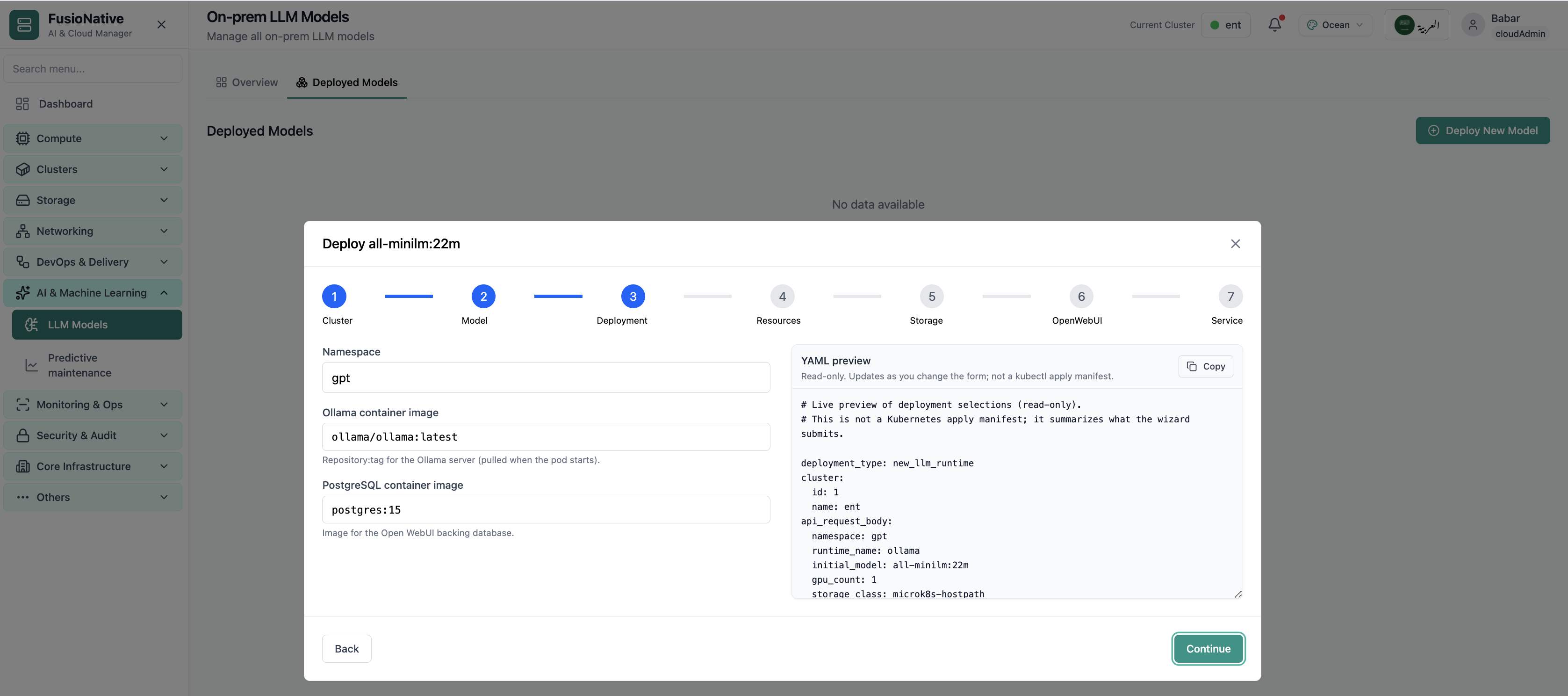
LLM deployment configuration step.
04 of 08 Deploy wizard

Deploy · Deployment

The deploy wizard’s Deployment step is where operators confirm llm deployment configuration step Each screen validates inputs before you advance, so GPU, storage, and networking stay aligned with cluster quotas and your on-prem policy.

  • Wizard validates each step before you continue
  • Settings stay consistent with cluster quotas and GPU pools
  • Review the full stack before anything reaches production

Click the screenshot to open full size, zoom, and pan.
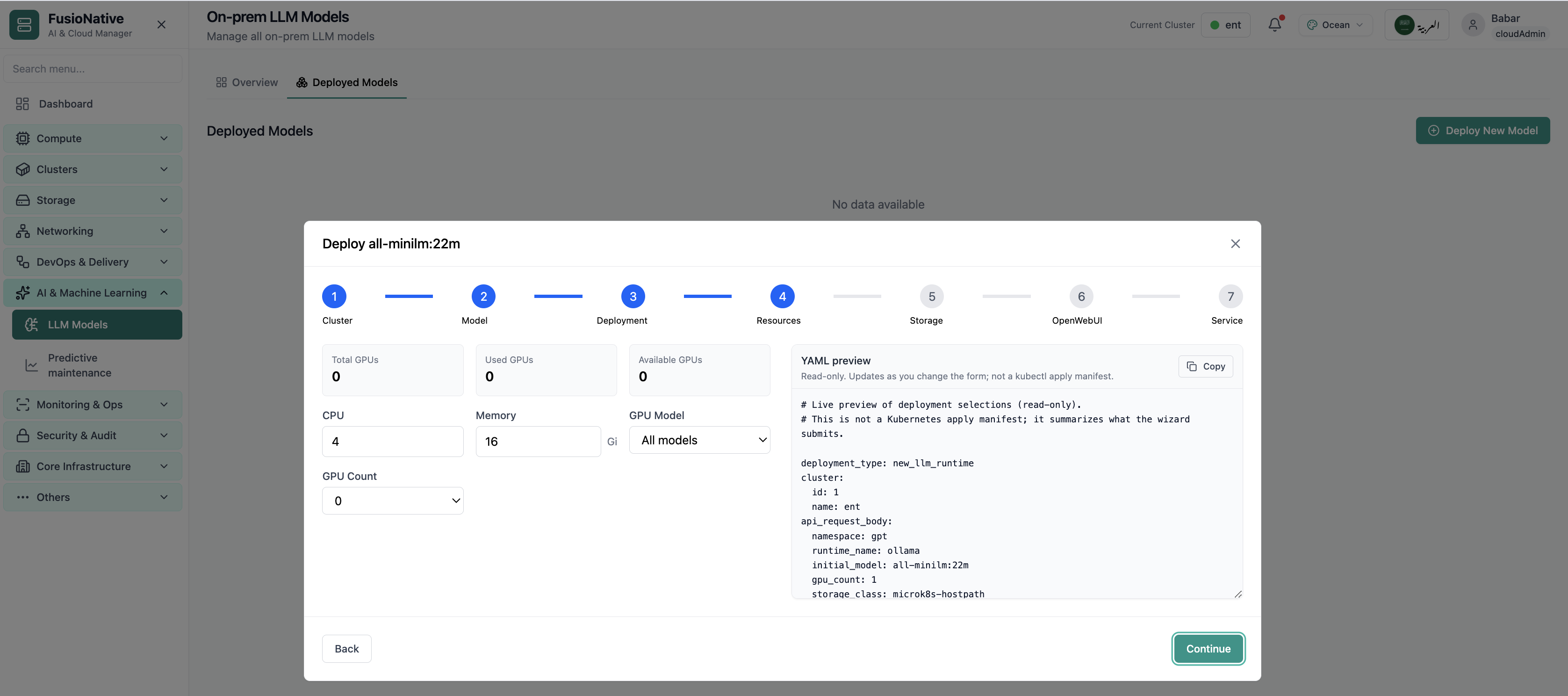
LLM resource and GPU allocation.
05 of 08 Deploy wizard

Deploy · Resources

The deploy wizard’s Resources step is where operators confirm llm resource and gpu allocation Each screen validates inputs before you advance, so GPU, storage, and networking stay aligned with cluster quotas and your on-prem policy.

  • Wizard validates each step before you continue
  • Settings stay consistent with cluster quotas and GPU pools
  • Review the full stack before anything reaches production

Click the screenshot to open full size, zoom, and pan.
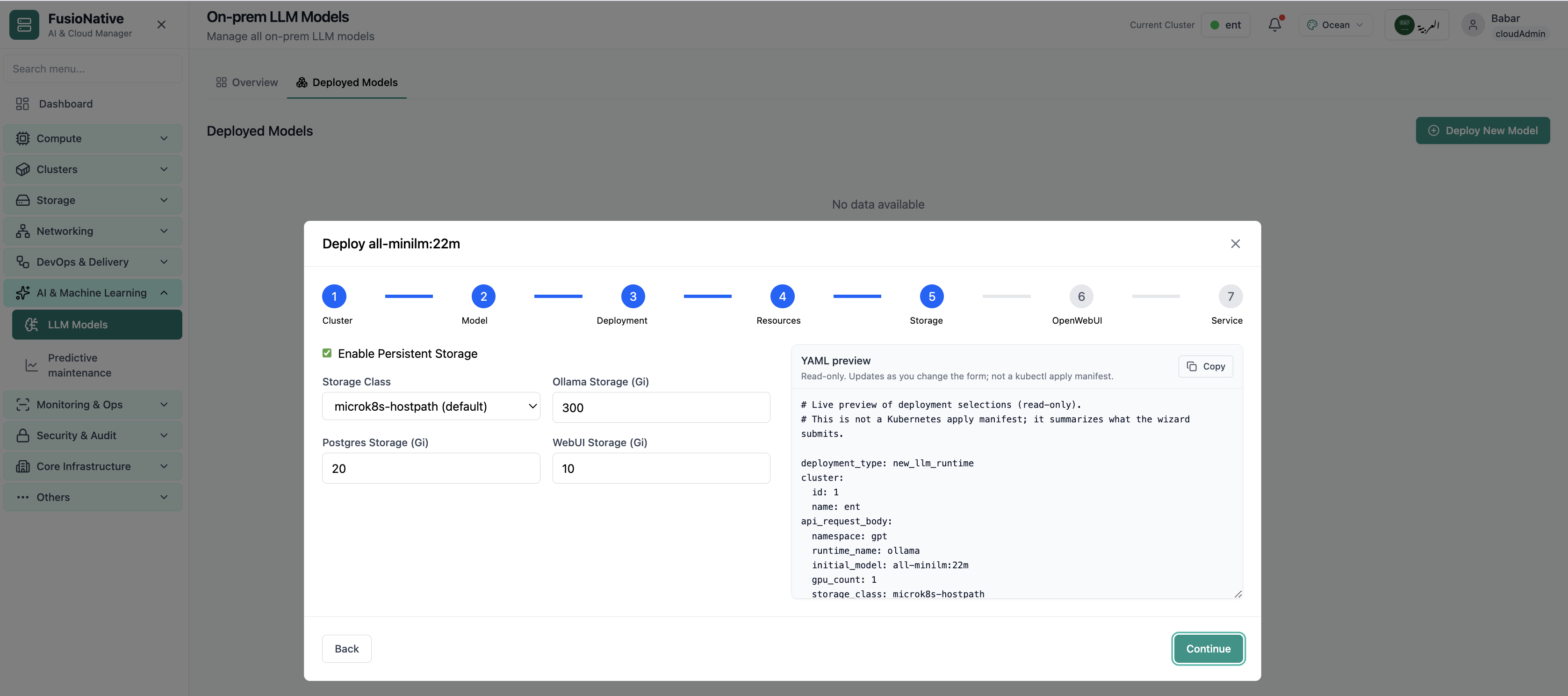
Persistent storage for LLM runtime.
06 of 08 Deploy wizard

Deploy · Storage

The deploy wizard’s Storage step is where operators confirm persistent storage for llm runtime Each screen validates inputs before you advance, so GPU, storage, and networking stay aligned with cluster quotas and your on-prem policy.

  • Wizard validates each step before you continue
  • Settings stay consistent with cluster quotas and GPU pools
  • Review the full stack before anything reaches production

Click the screenshot to open full size, zoom, and pan.
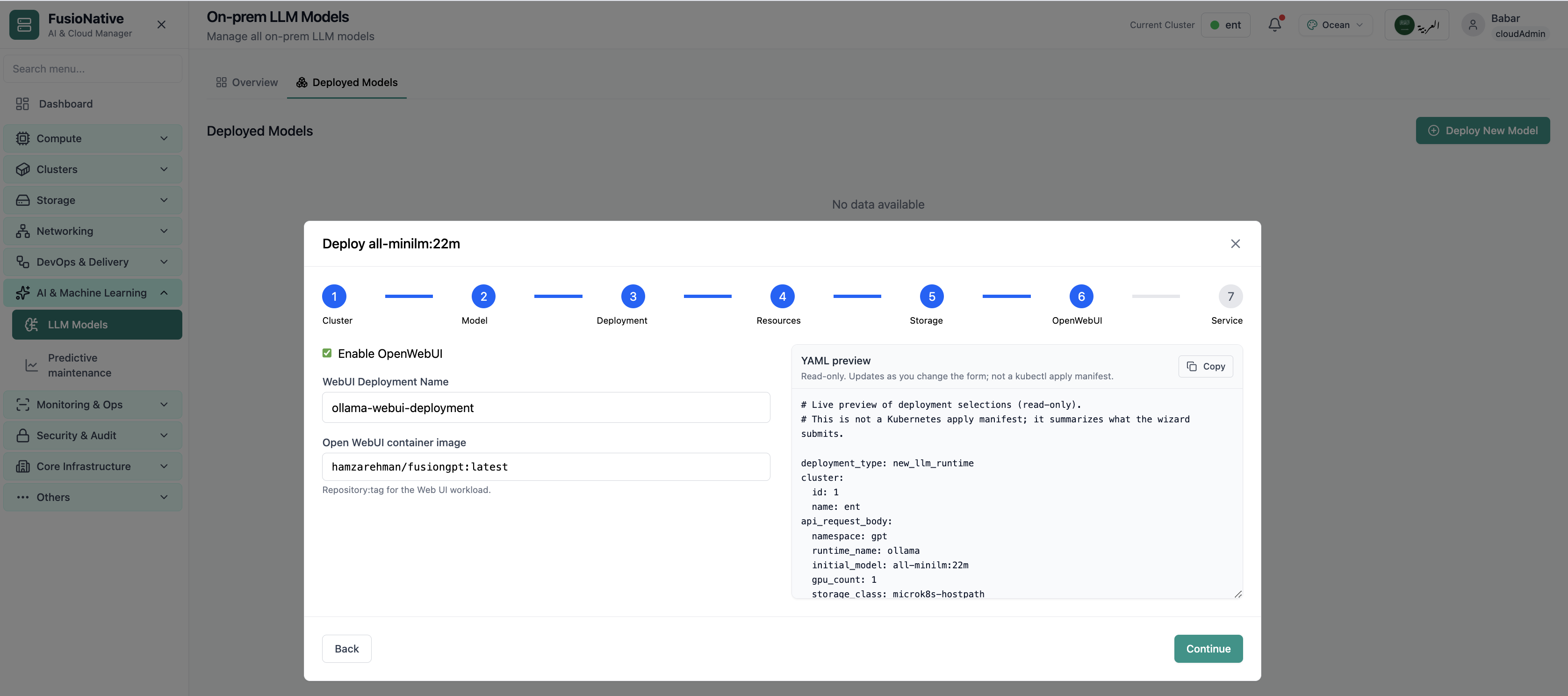
OpenWebUI configuration step.
07 of 08 Deploy wizard

Deploy · OpenWebUI

The deploy wizard’s OpenWebUI step is where operators confirm openwebui configuration step Each screen validates inputs before you advance, so GPU, storage, and networking stay aligned with cluster quotas and your on-prem policy.

  • Wizard validates each step before you continue
  • Settings stay consistent with cluster quotas and GPU pools
  • Review the full stack before anything reaches production

Click the screenshot to open full size, zoom, and pan.
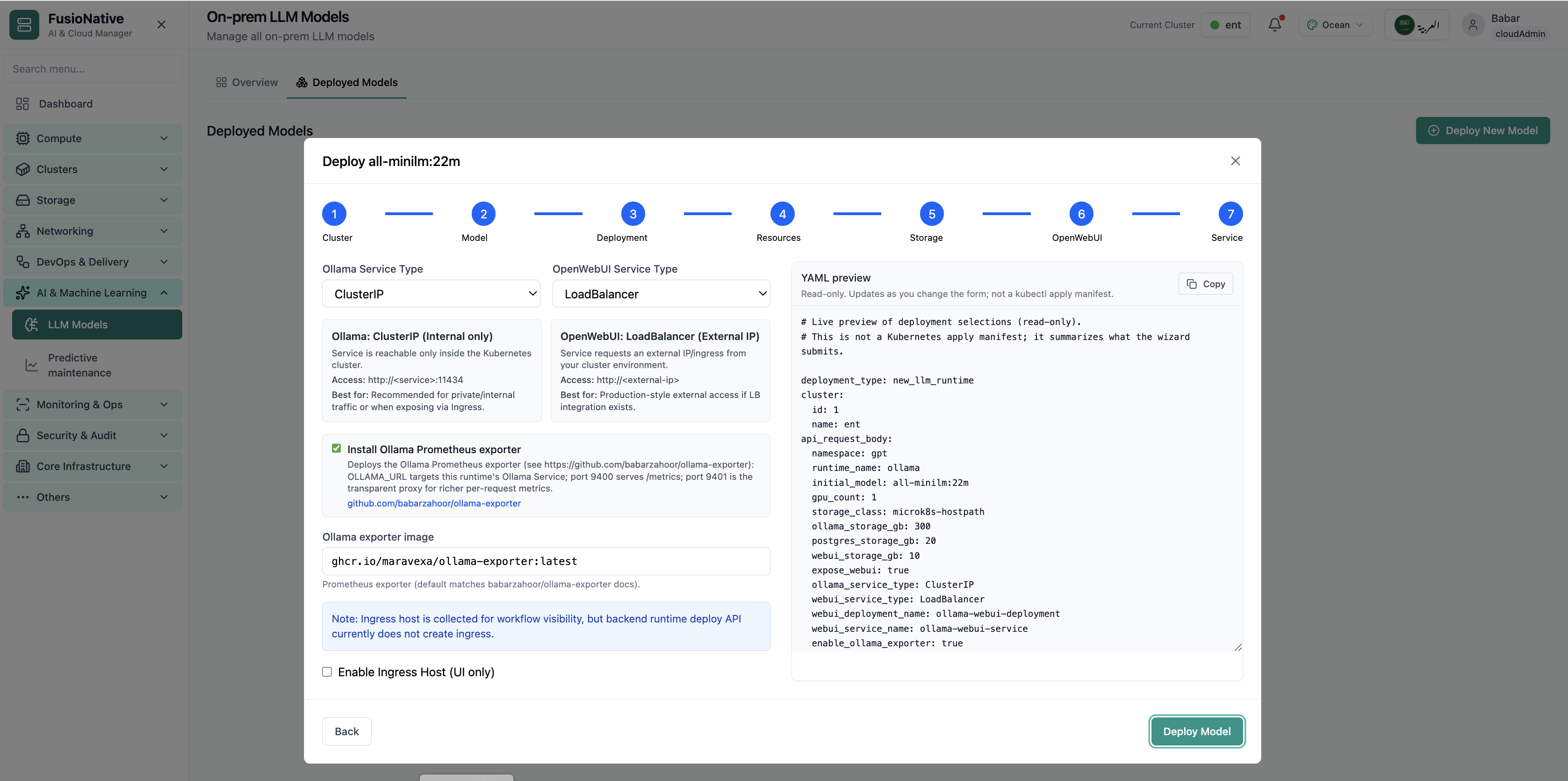
LLM service exposure step.
08 of 08 Deploy wizard

Deploy · Service

The deploy wizard’s Service step is where operators confirm llm service exposure step Each screen validates inputs before you advance, so GPU, storage, and networking stay aligned with cluster quotas and your on-prem policy.

  • Wizard validates each step before you continue
  • Settings stay consistent with cluster quotas and GPU pools
  • Review the full stack before anything reaches production

Click the screenshot to open full size, zoom, and pan.

Model operations

Inference is production—treat telemetry like any other SLO

When GPUs, tokens, and latency share one Overview, AI platform teams rehearse capacity instead of guessing during spikes.

Truthful gaps

Missing exporters surface as explicit signals—no synthetic token rates.

Deploy with intent

Existing vs net-new paths keep brownfield and greenfield teams on rails.

See the whole stack

Pods, GPUs, and network tubes tie back to model serving—not disconnected dashboards.

Put on-prem LLMs next to the clusters that host them

Operate LLM Models from Cloud Admin alongside Kubernetes, observability, and delivery workflows.

Get a demo